How to connect Binance to Nabu: a step-by-step guide
Nabu trades on Binance with an API key you create. With it, Nabu can place and cancel orders and read your balances and positions, and only what the key allows. Nabu never asks for withdrawal rights: it cannot withdraw funds or transfer them between accounts. No order is placed by connecting.
Step 1: Start the connection in Nabu
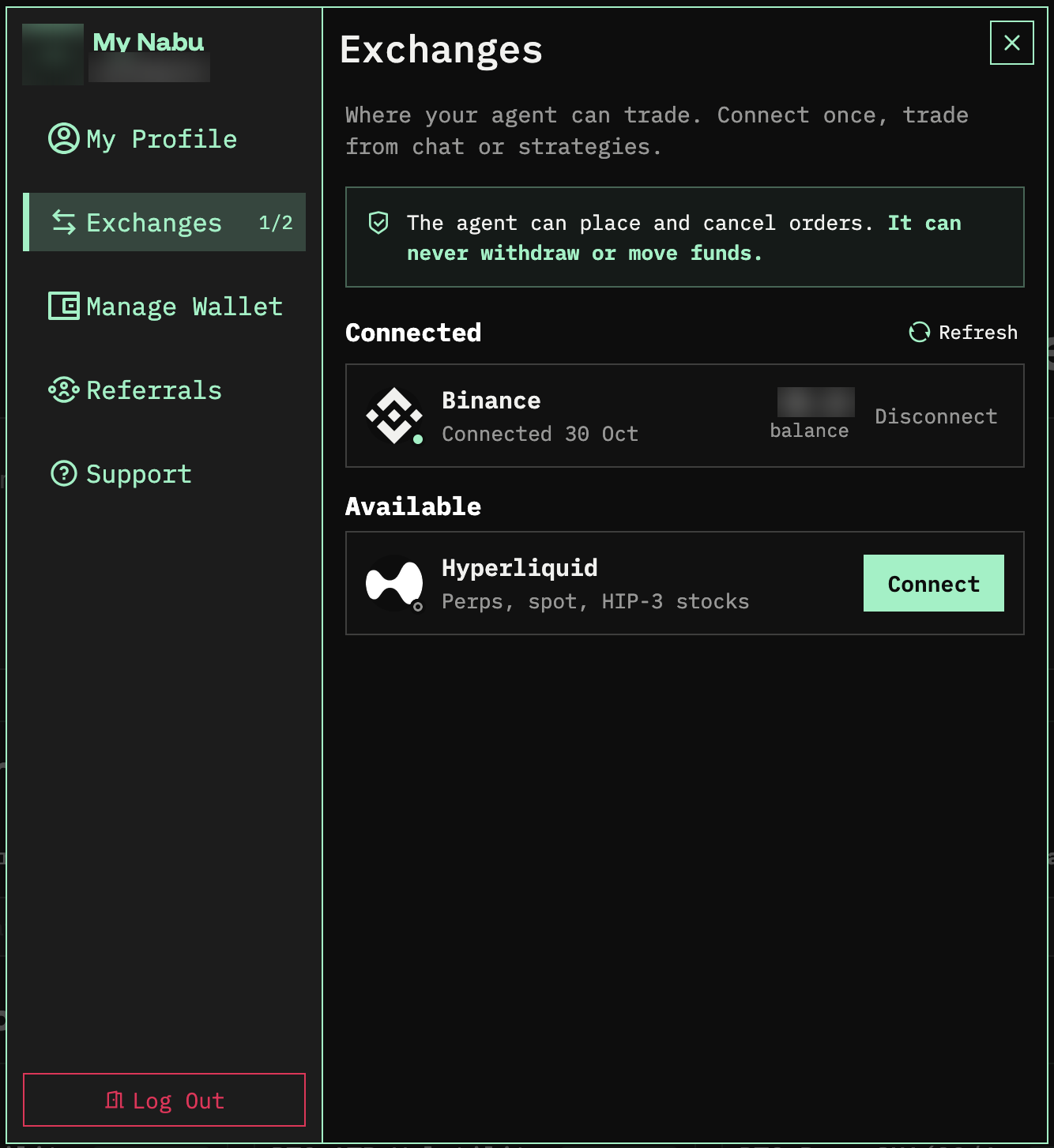
1. Go to app.nabu.pro/?settings=exchanges. This opens the Exchanges tab of your Nabu settings.
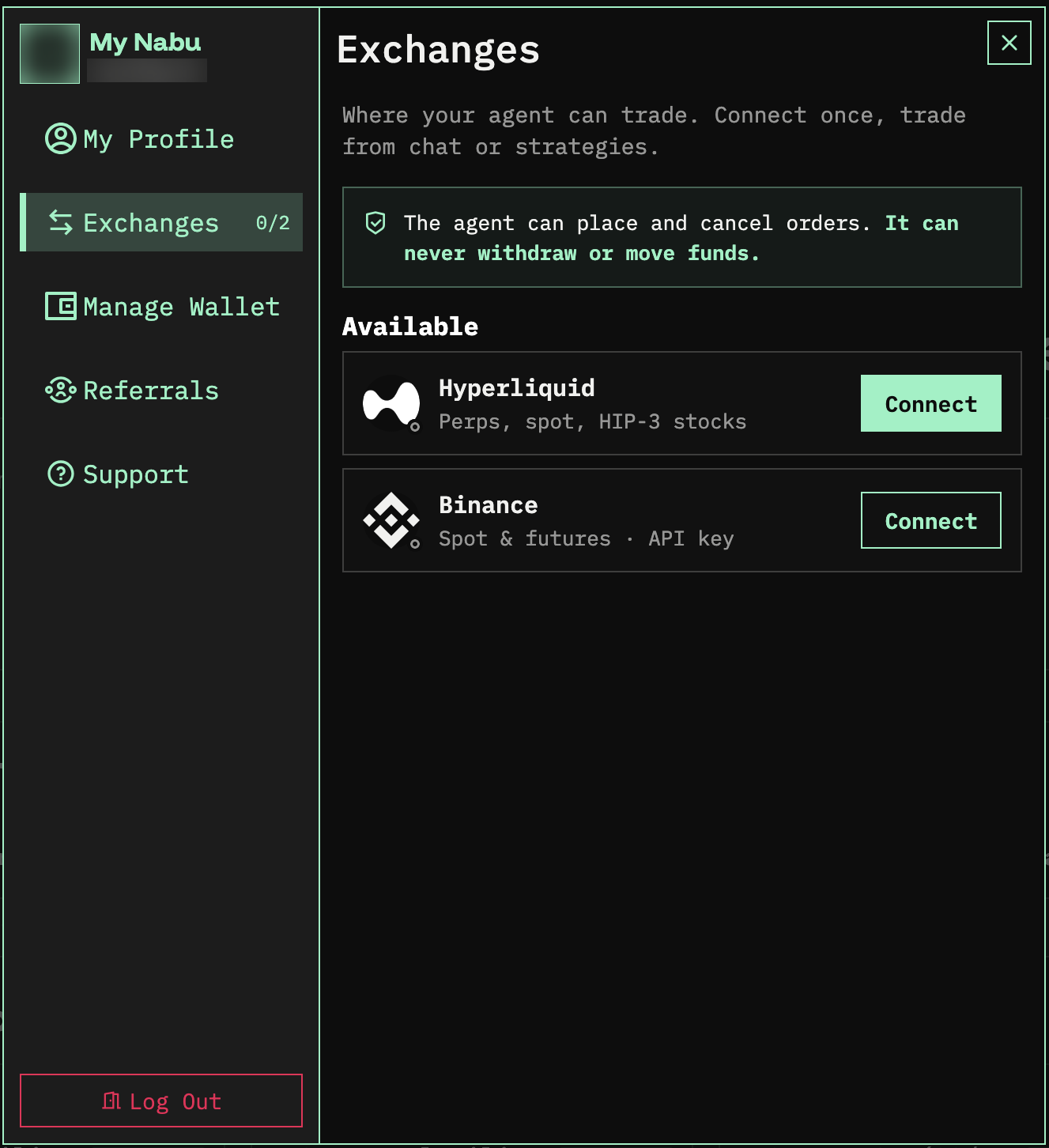
2. Under Available, click Connect next to Binance.
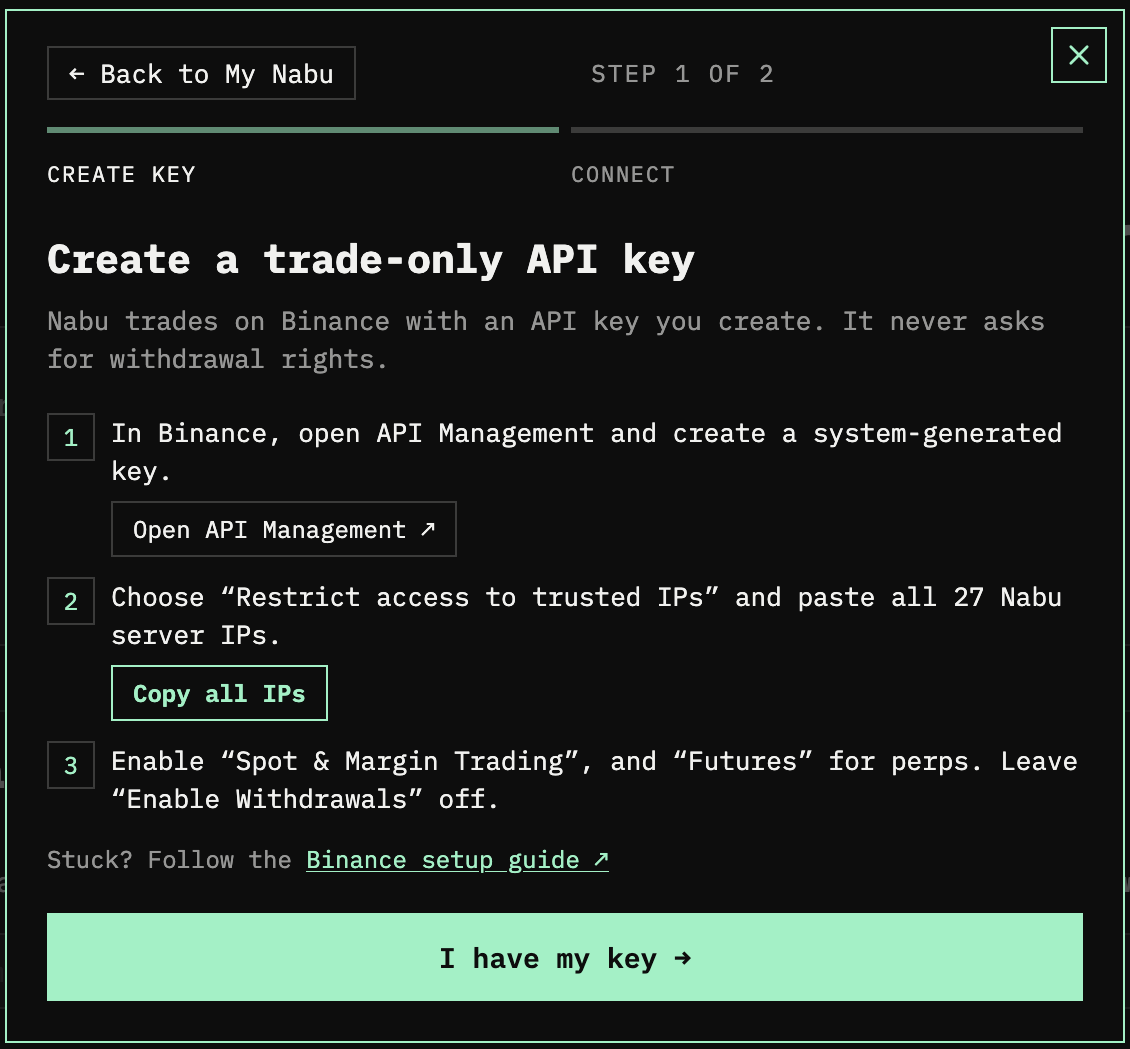
3. Nabu opens Create a trade-only API key, the first of two steps. It sums up what to do on Binance and has a Copy all IPs button you need in Step 2. Keep this window open.
Step 2: Create your API key on Binance
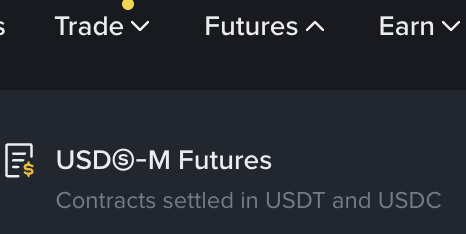
4. Click Open API Management, or go to binance.com/en/my/settings/api-management. Click Create API and create a system-generated key.

5. Once the API key is created, save the API key and API secret, then click Edit Restrictions.
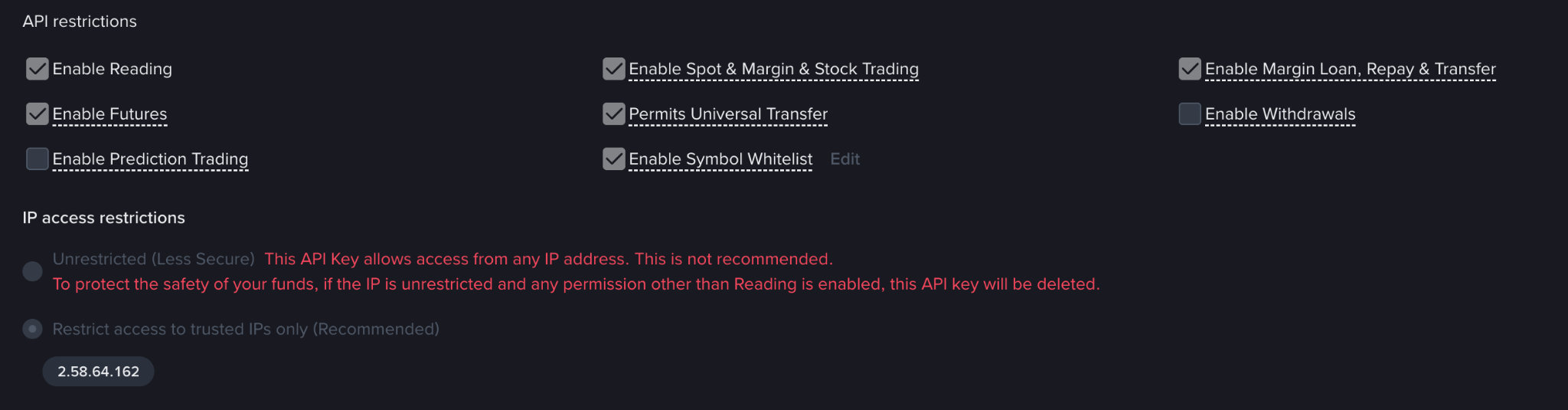
6. In the IP access restrictions field, select Restrict access to trusted IPs only (Recommended). In Nabu, click Copy all IPs and paste all 27 Nabu server IP addresses into the field.

All 27 Nabu server IP addresses
80.74.29.15085.137.89.685.137.89.21585.137.93.2085.137.93.2785.137.95.18588.218.121.17788.218.122.17889.46.131.289.150.59.6391.132.59.5195.81.99.6295.81.100.10285.137.95.19285.137.95.19388.218.120.3788.218.120.11088.218.120.19588.218.121.11588.218.121.12388.218.121.14988.218.122.9188.218.122.13688.218.122.23388.218.123.9588.218.123.24689.46.131.116
7. Tick Enable Spot & Margin & Stock Trading for spot, and Enable Futures for perps. Leave Enable Withdrawals off.
Note: for futures, make sure your Binance Futures account is set up and funded.
8. Tick Enable Symbol Whitelist and add the assets you want Nabu to trade.
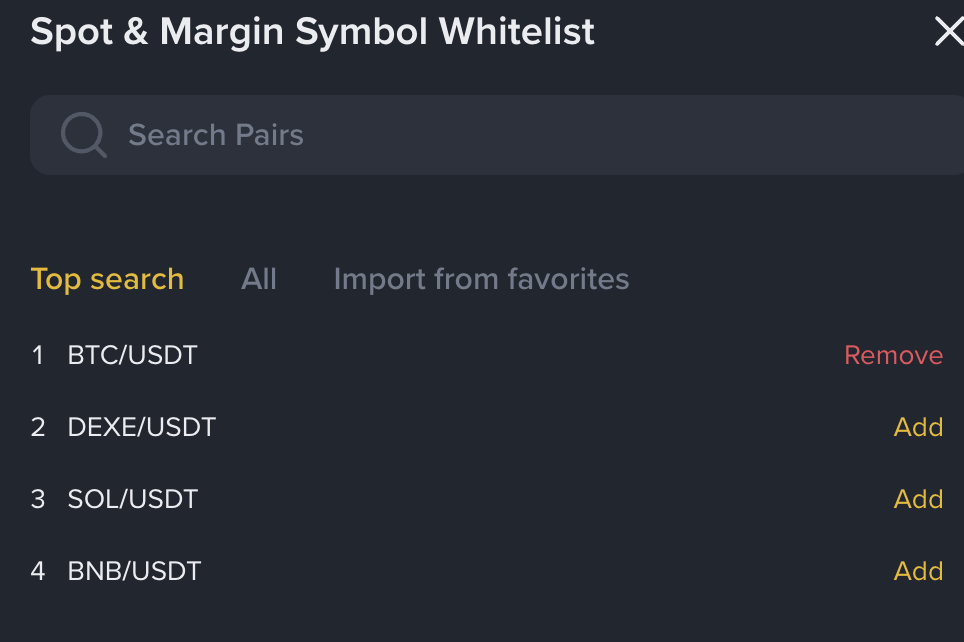
9. Save the changes.
Step 3: Link the key in Nabu
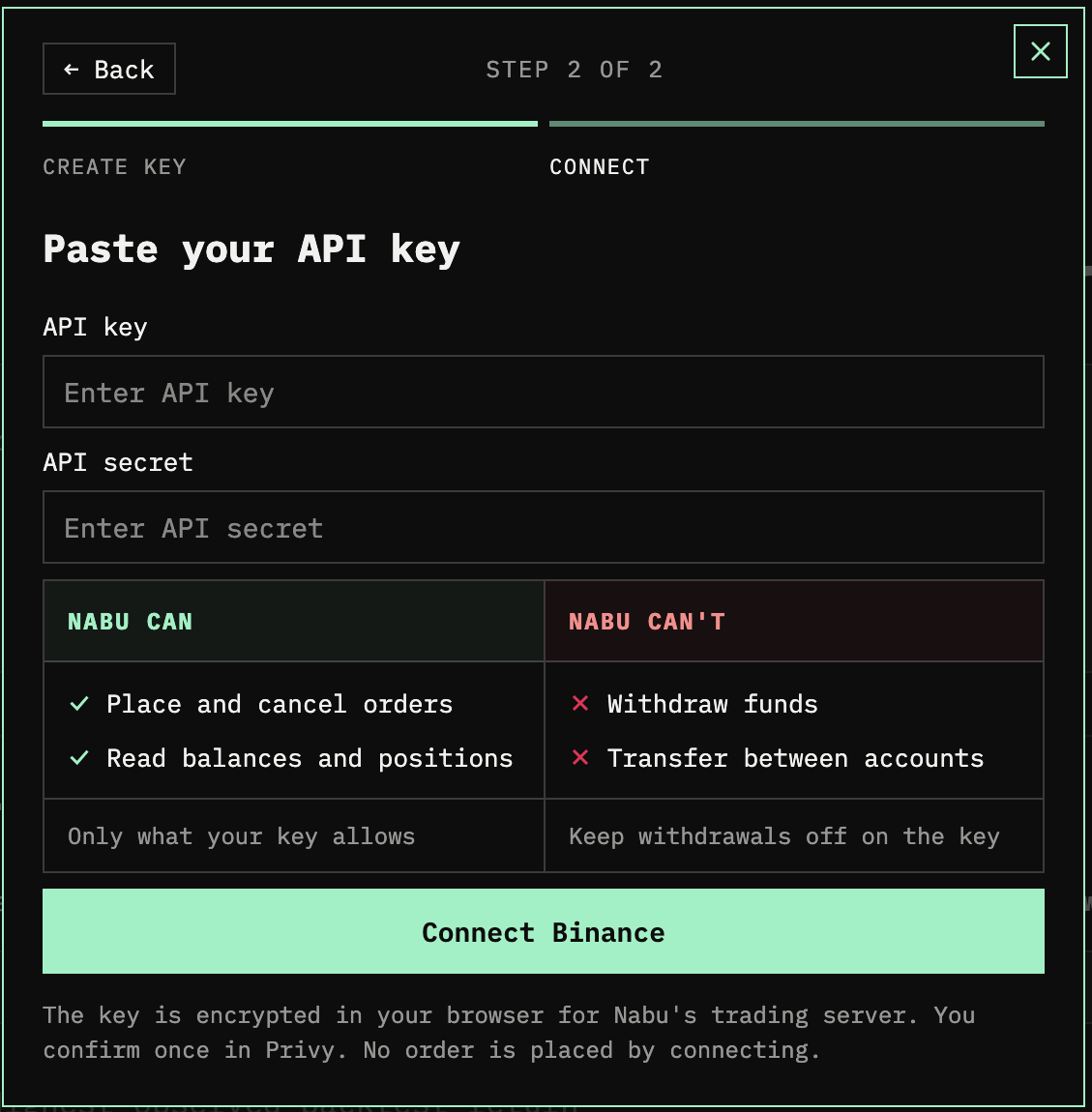
10. Back in Nabu, click I have my key. Under Paste your API key, paste your API key and API secret into the API key and API secret fields, and click Connect Binance. The key is encrypted in your browser for Nabu's trading server.
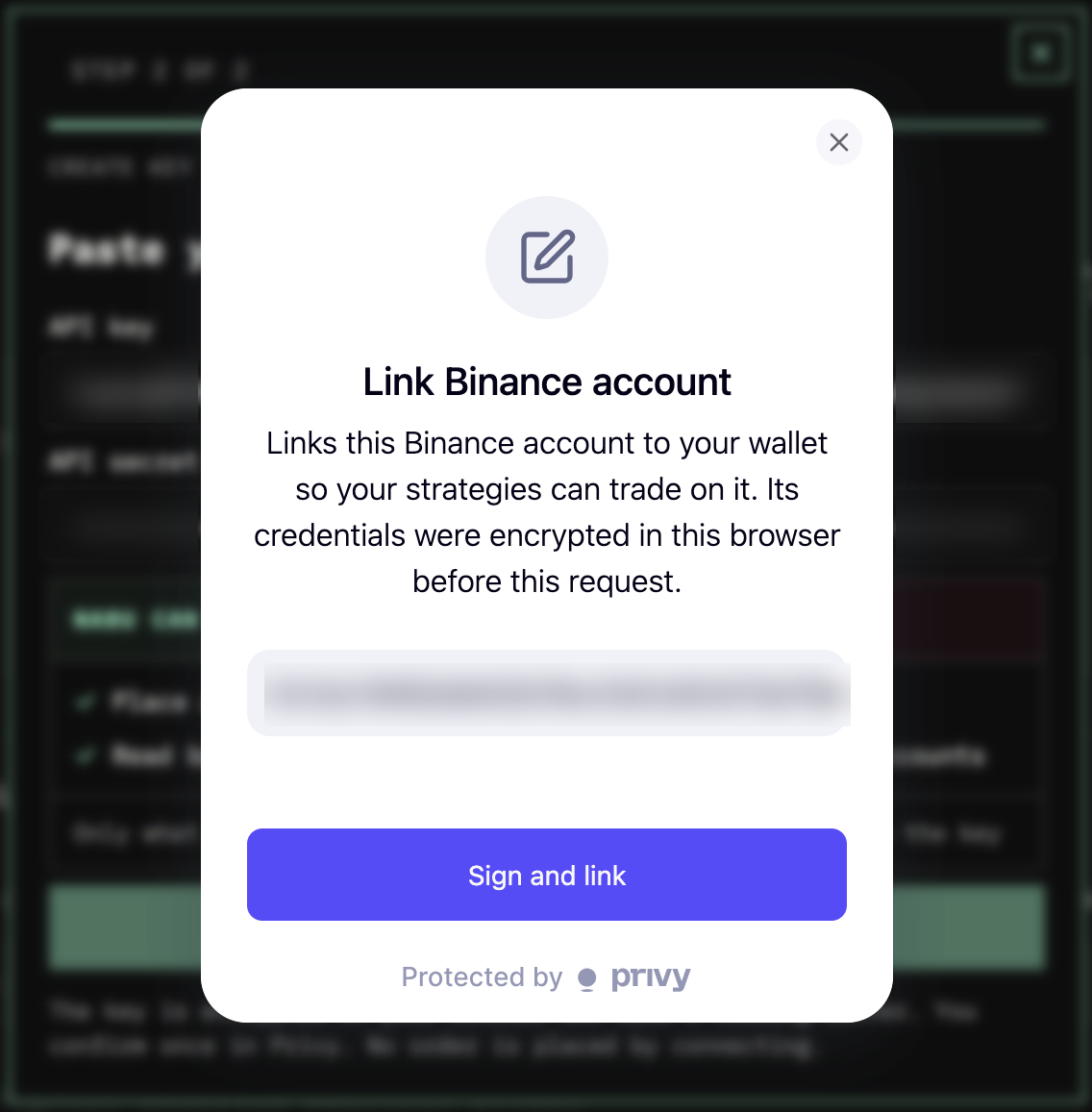
11. Privy shows Link Binance account. This links the Binance account to your Nabu wallet so your strategies can trade on it. Click Sign and link.
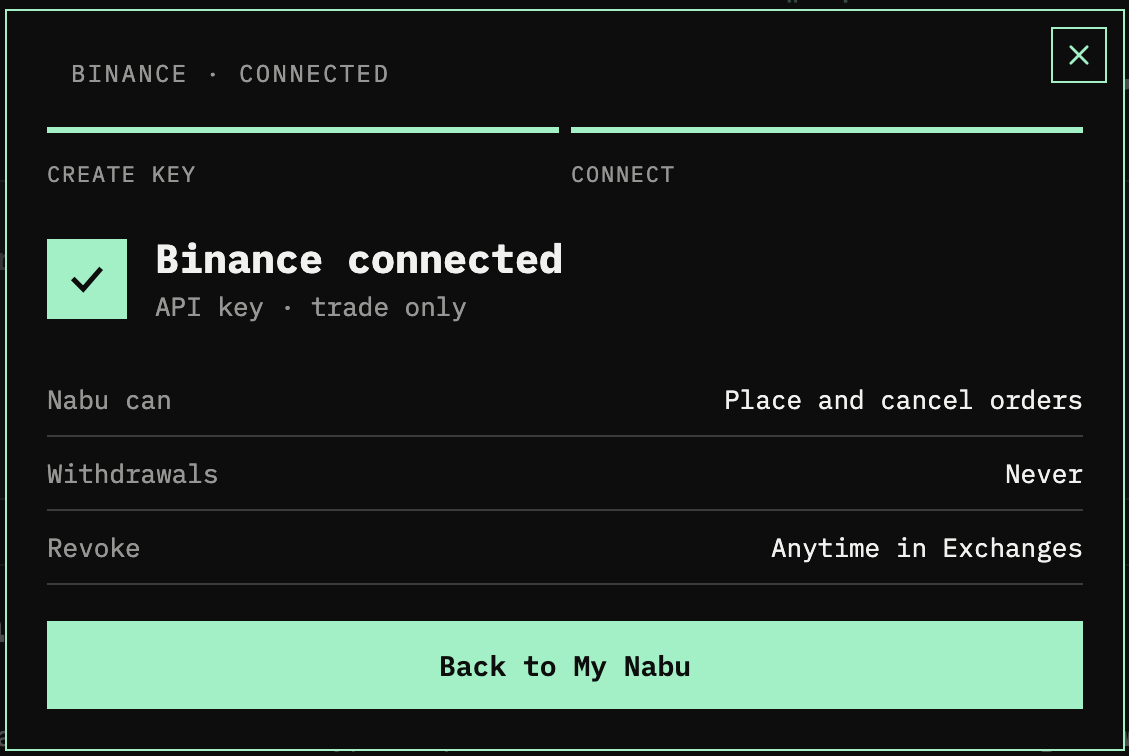
12. Nabu shows Binance connected: an API key with trade-only access, withdrawals never allowed. Click Back to My Nabu.
13. Binance now appears under Connected on the Exchanges tab, with a green status indicator, the connection date, and the balance. To revoke Nabu's access at any time, click Disconnect.