How to connect Hyperliquid to Nabu: a step-by-step guide
Connecting takes about a minute, and no order is placed by connecting. Nabu gets its own trading agent on your Hyperliquid account: it can place and cancel orders and set take-profit, stop-loss, and leverage. It can never withdraw funds or transfer them to another wallet. Hyperliquid and Privy block both.
Deposit at least 5 USDC
Hyperliquid approves Nabu's trading agent only for an account that already holds funds. Deposit at least 5 USDC before you connect. Hyperliquid's bridge does not credit deposits under 5 USDC, and those funds are lost.
Step 1: Open the Exchanges tab in Nabu
1. Go to app.nabu.pro/?settings=exchanges. This opens the Exchanges tab of your Nabu settings.
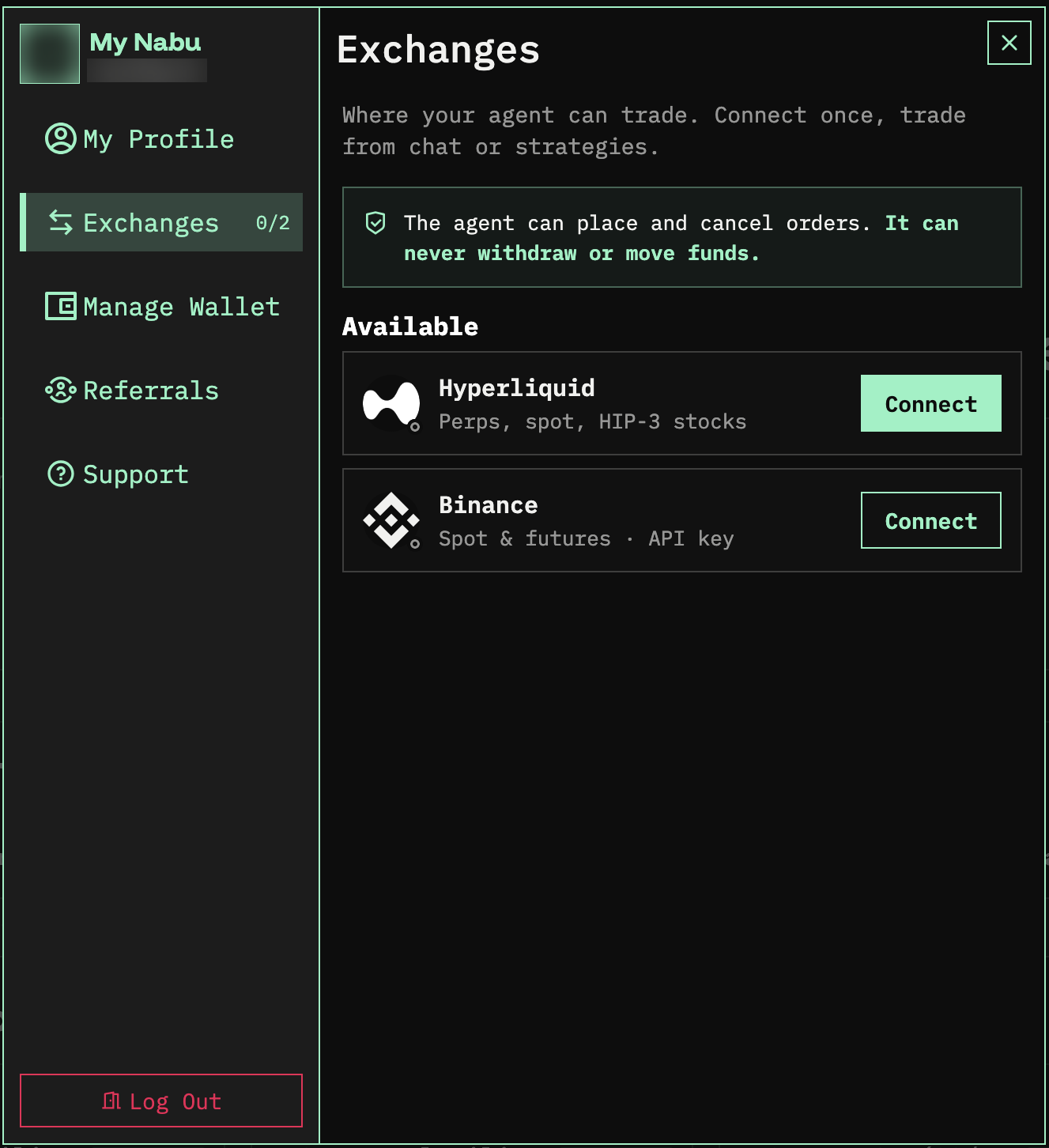
2. Under Available, click Connect next to Hyperliquid.
Step 2: Choose how you want to trade
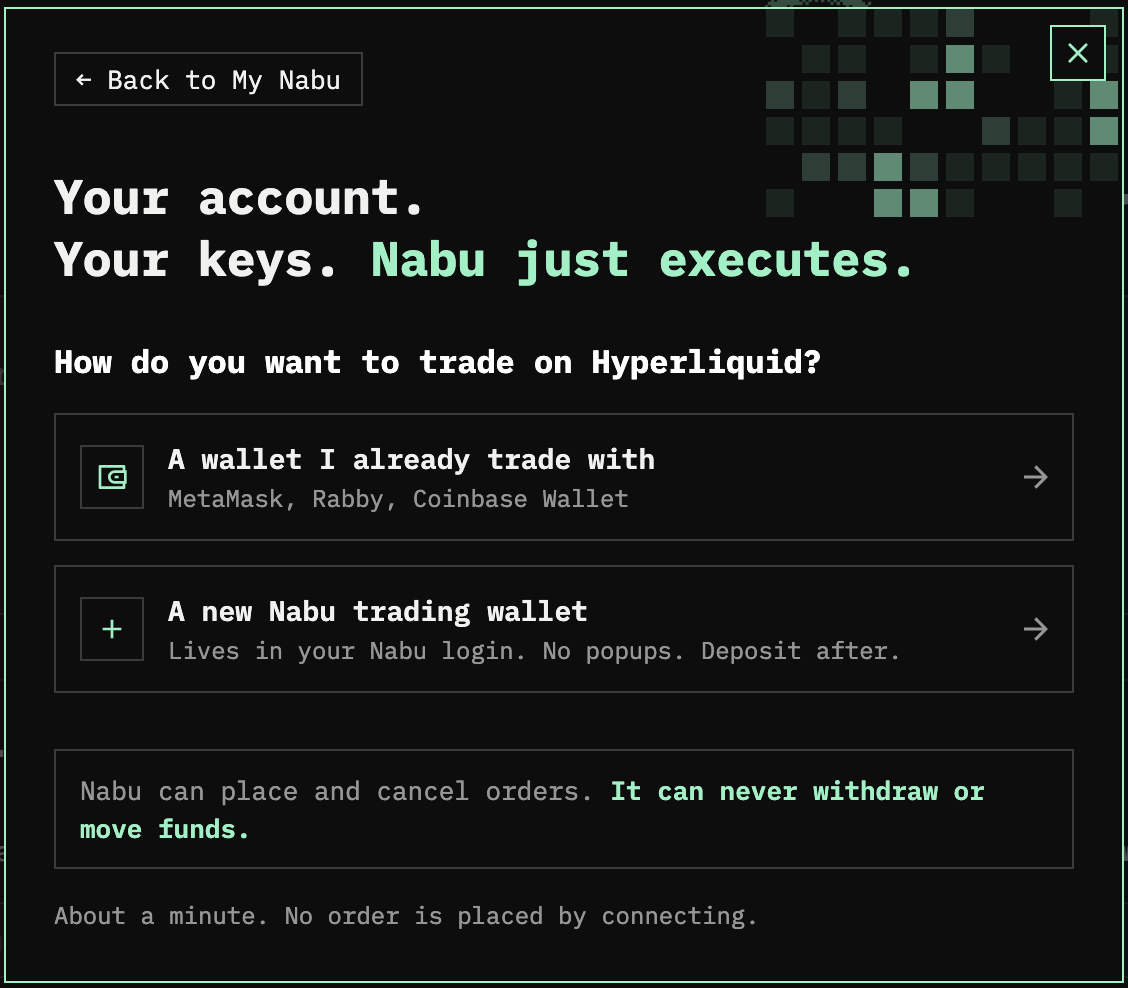
3. Nabu asks How do you want to trade on Hyperliquid? Pick one:
- A wallet I already trade with: you already have a funded Hyperliquid account in MetaMask, Rabby, Coinbase Wallet, or another wallet. Go to Step 3A.
- A new Nabu trading wallet: the wallet lives in your Nabu login, so you confirm in Privy and need no browser extension. You deposit funds after. Go to Step 3B.
Step 3A: Connect a wallet you already trade with
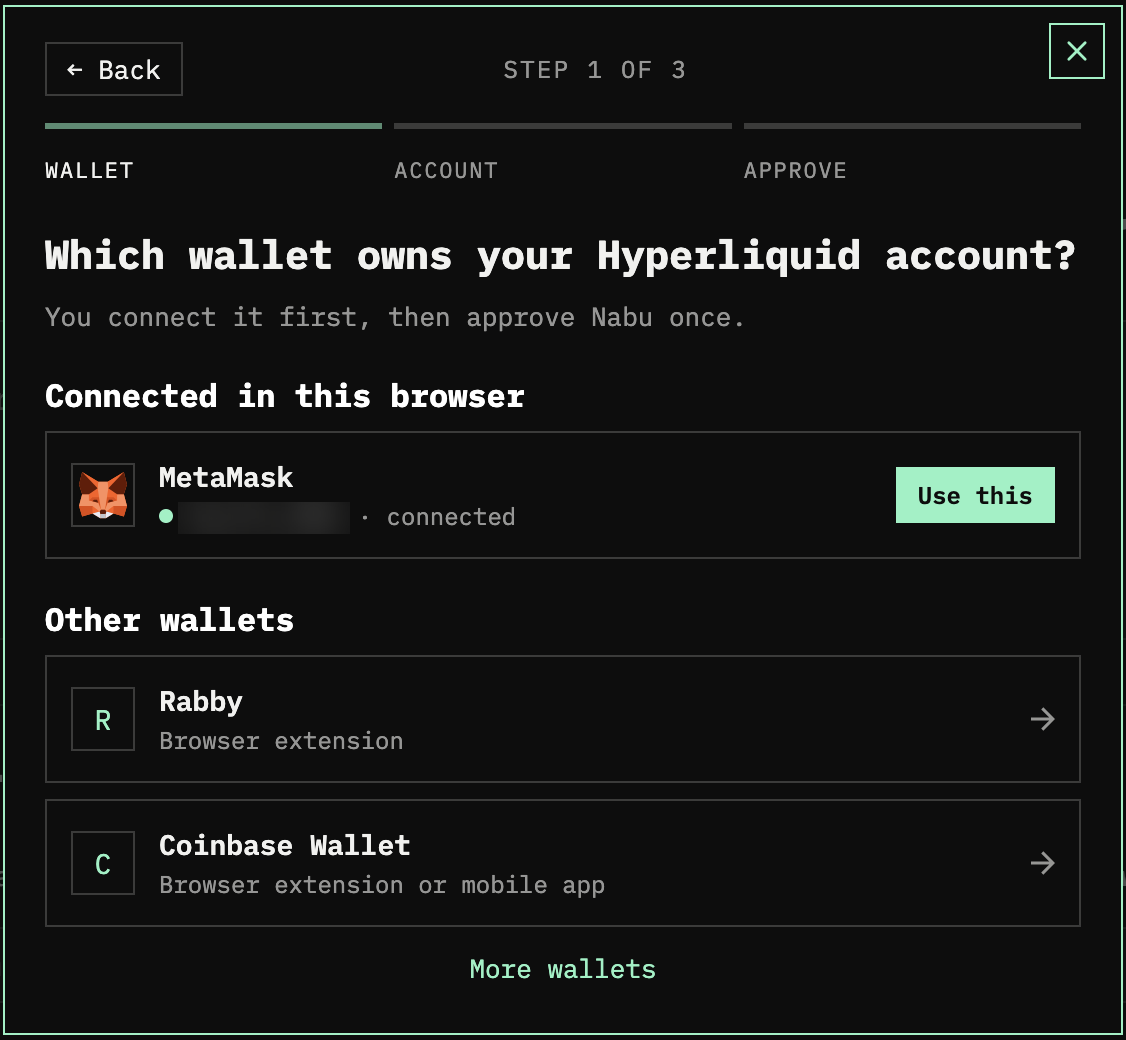
The connection has three steps: Wallet, Account, and Approve.
4. Wallet. Under Which wallet owns your Hyperliquid account?, choose MetaMask, Rabby, or Coinbase Wallet. For any other wallet, click More wallets. Confirm the connection in your wallet. If the wallet is already connected in this browser, it is listed under Connected in this browser: click Use this.
5. Account. Nabu looks up your wallet on Hyperliquid. Under Which account should Nabu trade?, select Main account and click Continue.
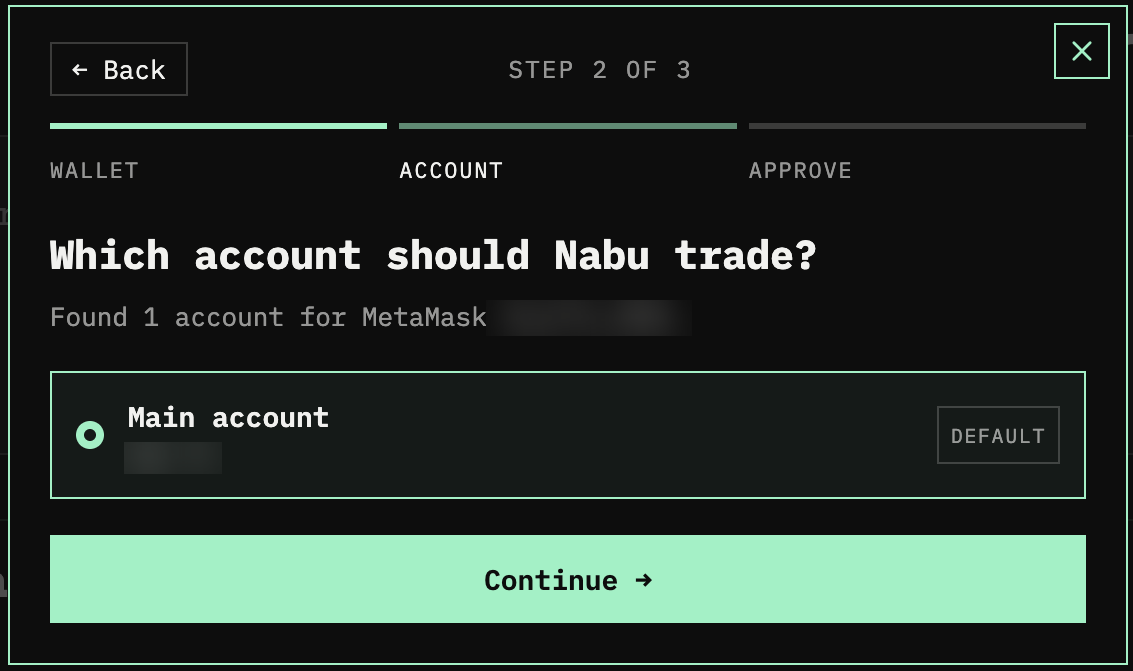
If the account holds no funds yet, Nabu shows Can't connect yet: no funds on Hyperliquid. Click Deposit on Hyperliquid, deposit at least 5 USDC, and then click Check again. A deposit can take a few minutes to show up. Continue unlocks once the wallet holds at least 5 USDC on Hyperliquid.
6. Approve. Check the summary under Approve Nabu to trade: the wallet, the account, a new Nabu agent, and Valid: Until you revoke it. Click Connect Hyperliquid.
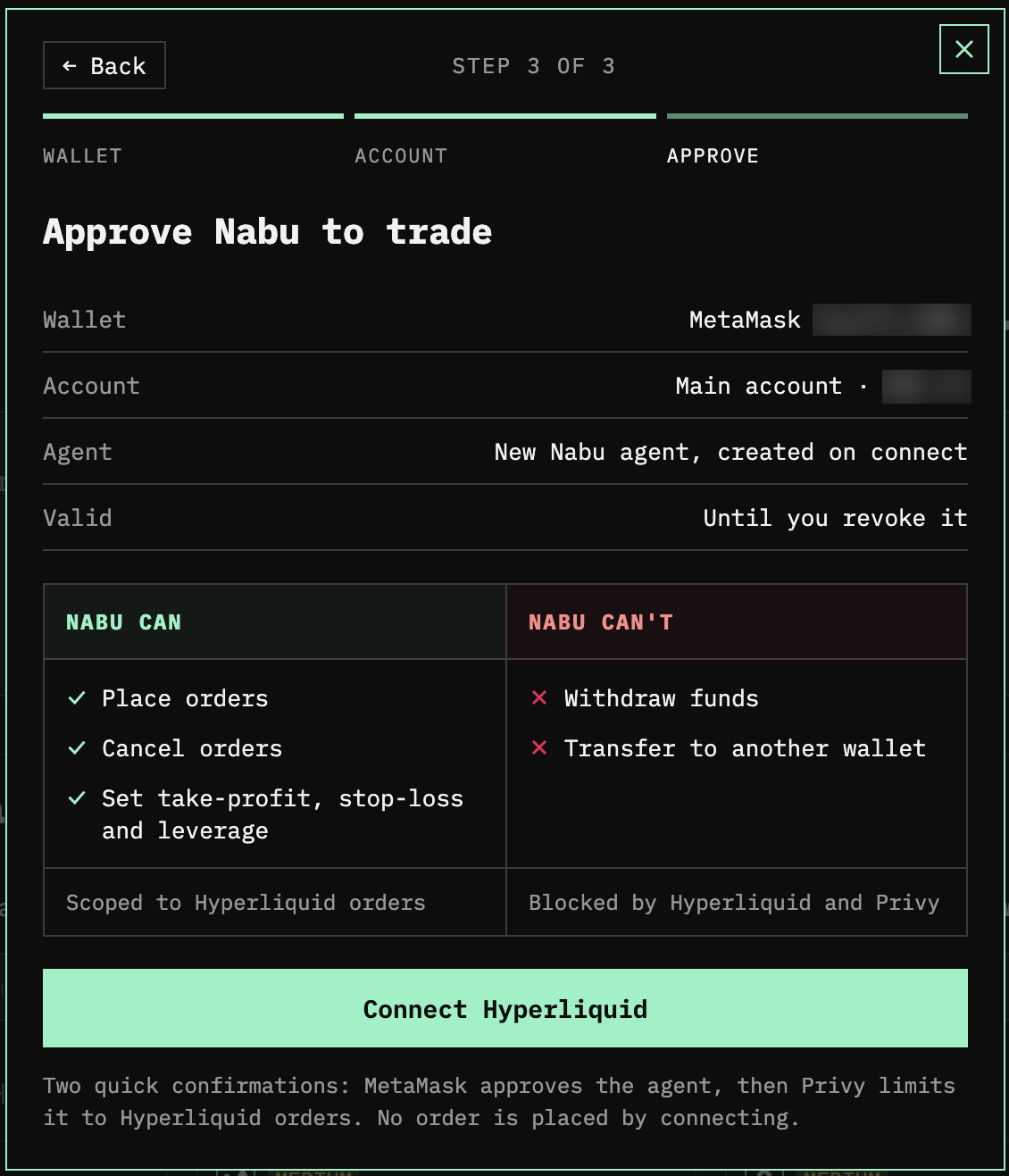
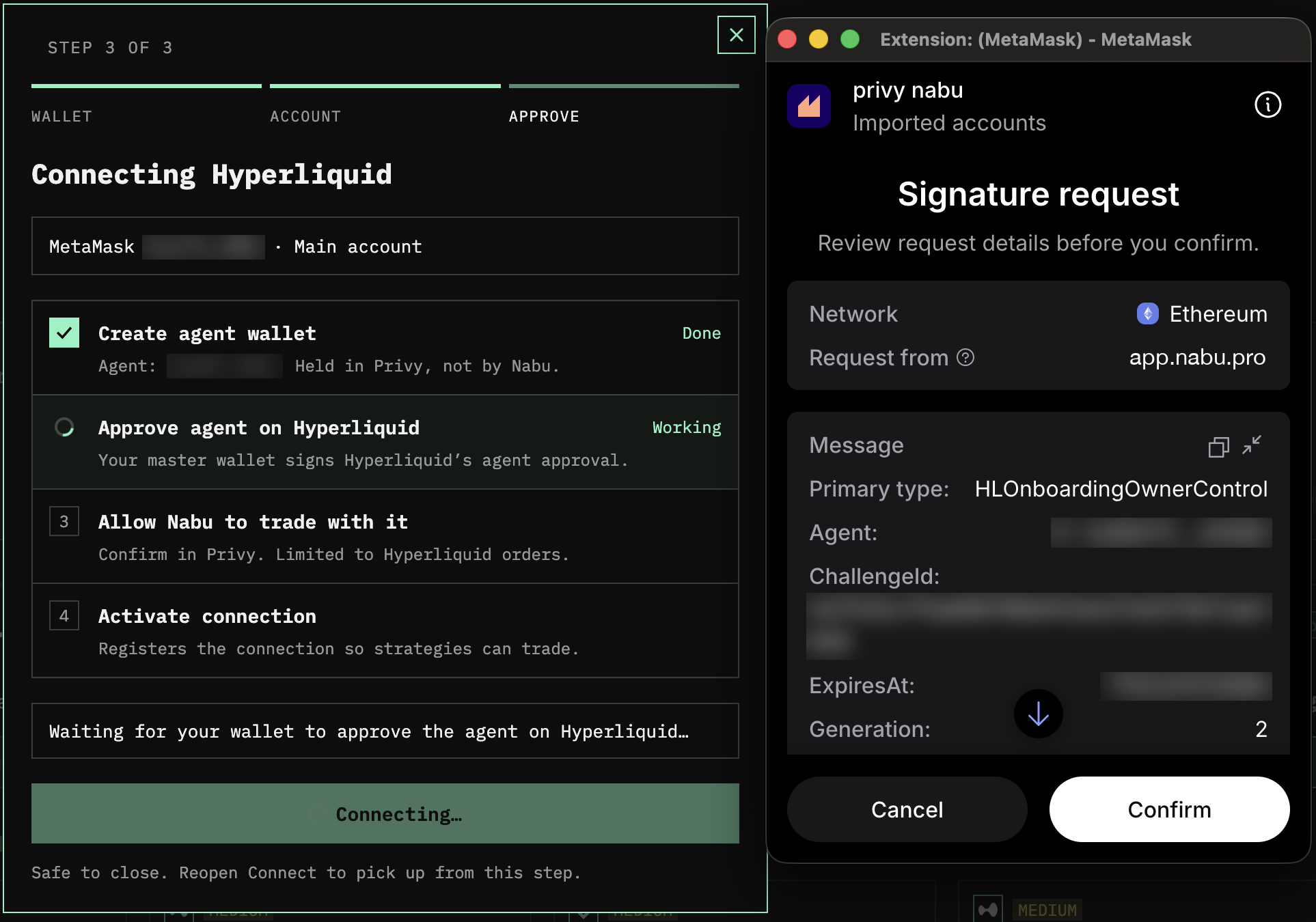
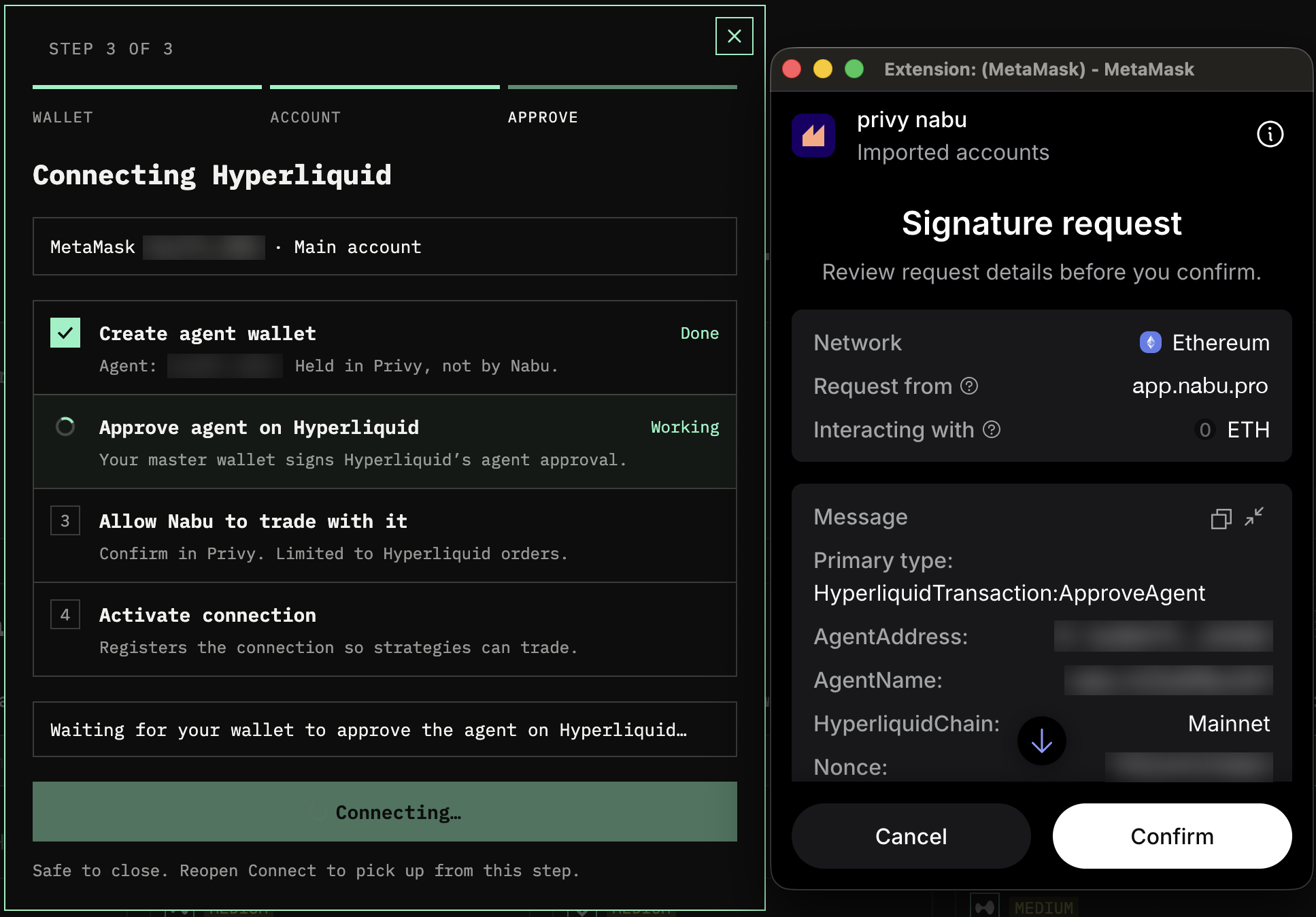
7. Nabu shows Connecting Hyperliquid and walks through four steps: Create agent wallet, Approve agent on Hyperliquid, Allow Nabu to trade with it, and Activate connection. The agent wallet is held in Privy, not by Nabu. If you close the window, reopen Connect to pick up from the same step.
8. Your wallet asks for two signatures to approve the agent on Hyperliquid. Check that Request from shows app.nabu.pro, then click Confirm on each:
- the first request, with the primary type HLOnboardingOwnerControl;
- the second request, with the primary type HyperliquidTransaction:ApproveAgent.
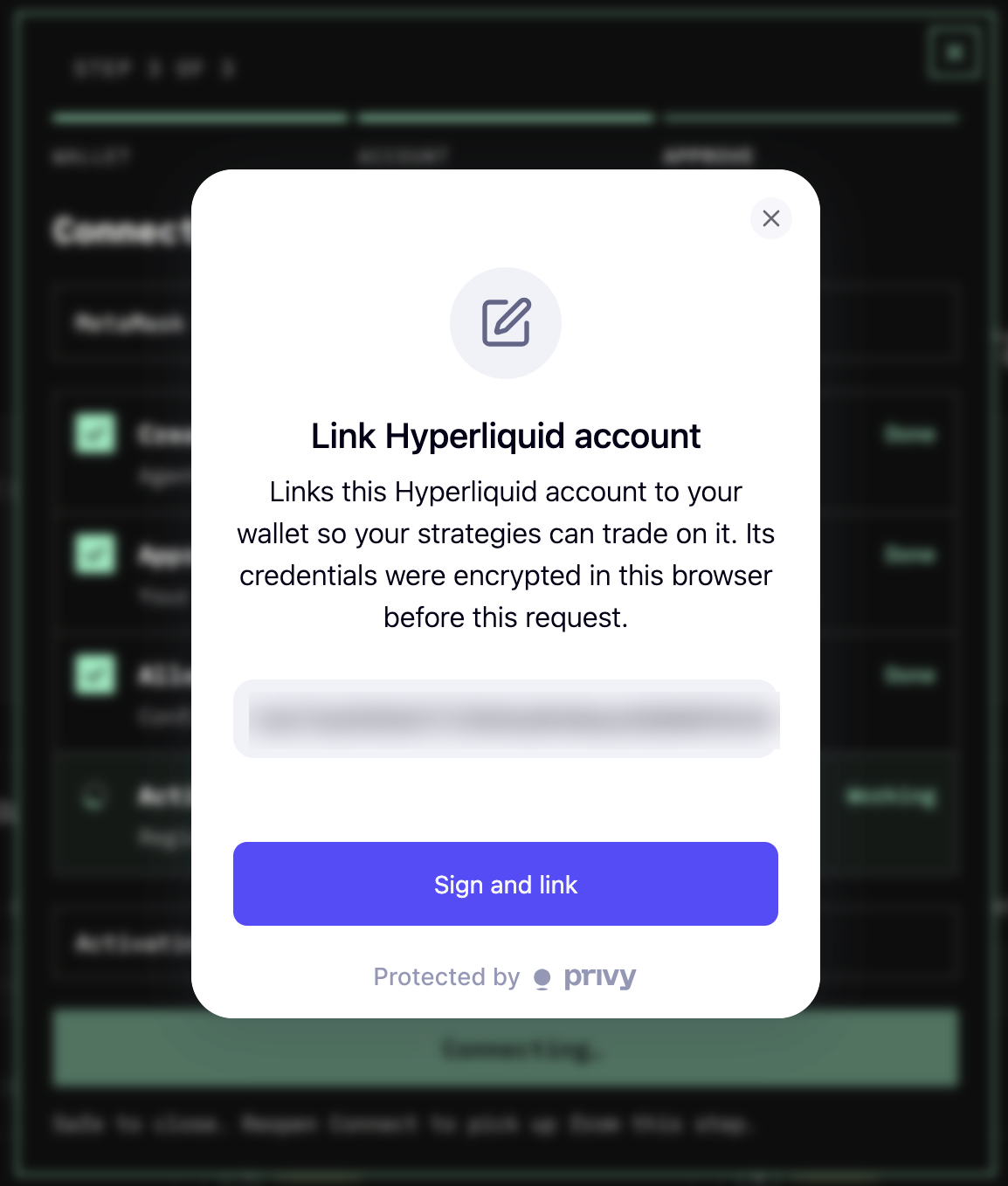
9. At the Activate connection step, Privy shows Link Hyperliquid account. This links the Hyperliquid account to your Nabu wallet so your strategies can trade on it. Click Sign and link.
Then go to Step 4.
Step 3B: Use a Nabu trading wallet
The connection has the same three steps: Wallet, Account, and Approve.
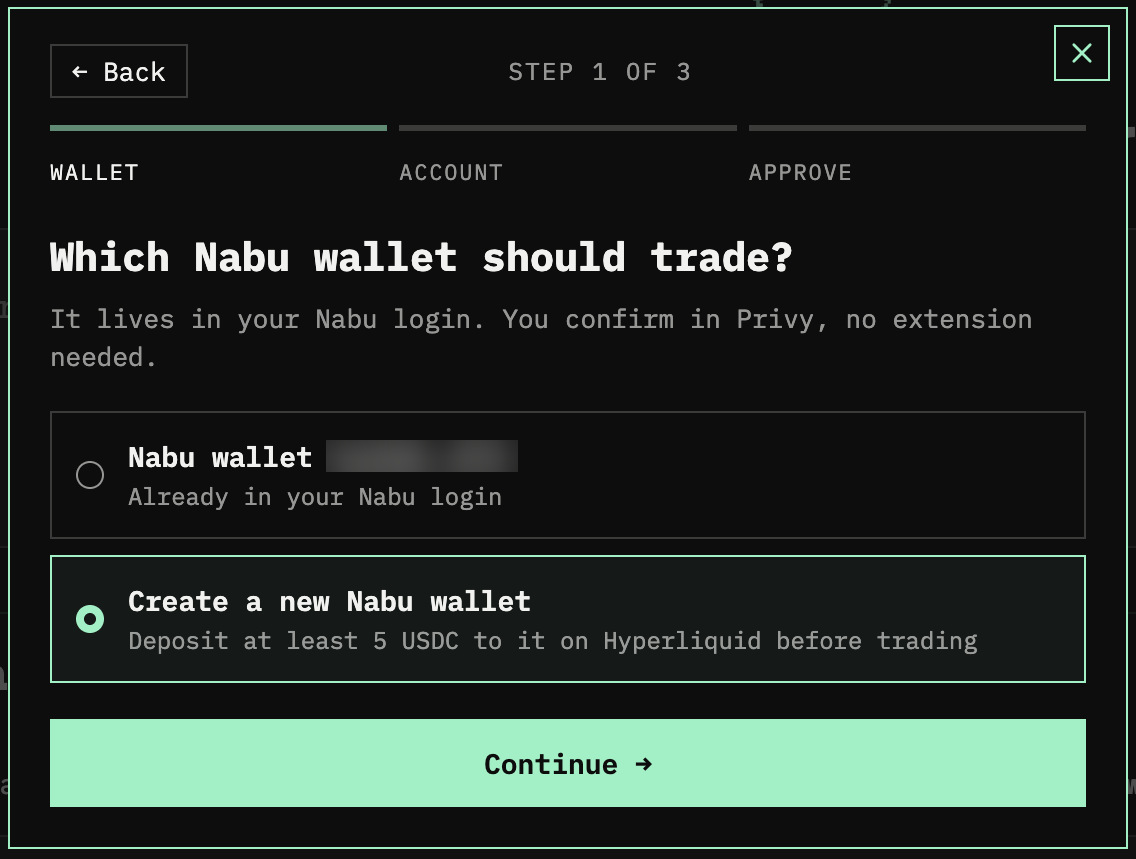
4. Wallet. Under Which Nabu wallet should trade?, pick a Nabu wallet you already have, or select Create a new Nabu wallet. Click Continue. If you have no Nabu wallet yet, Nabu skips this step and the Account step and goes straight to Approve.
5. Account. For an existing Nabu wallet, select Main account under Which account should Nabu trade? and click Continue. For a new wallet, this step is skipped.
6. Approve. Check the summary under Approve Nabu to trade and click Connect Hyperliquid. Confirm in Privy: your Nabu wallet approves the agent, then Privy limits it to Hyperliquid orders.
7. Fund the wallet. A new Nabu wallet starts empty, so Nabu shows Can't connect yet: no funds on Hyperliquid with the wallet address under Deposit to. Click Copy, deposit at least 5 USDC to that address on Hyperliquid, and wait for the deposit to arrive. Then click the button under the message to finish connecting.
Step 4: Check the connection
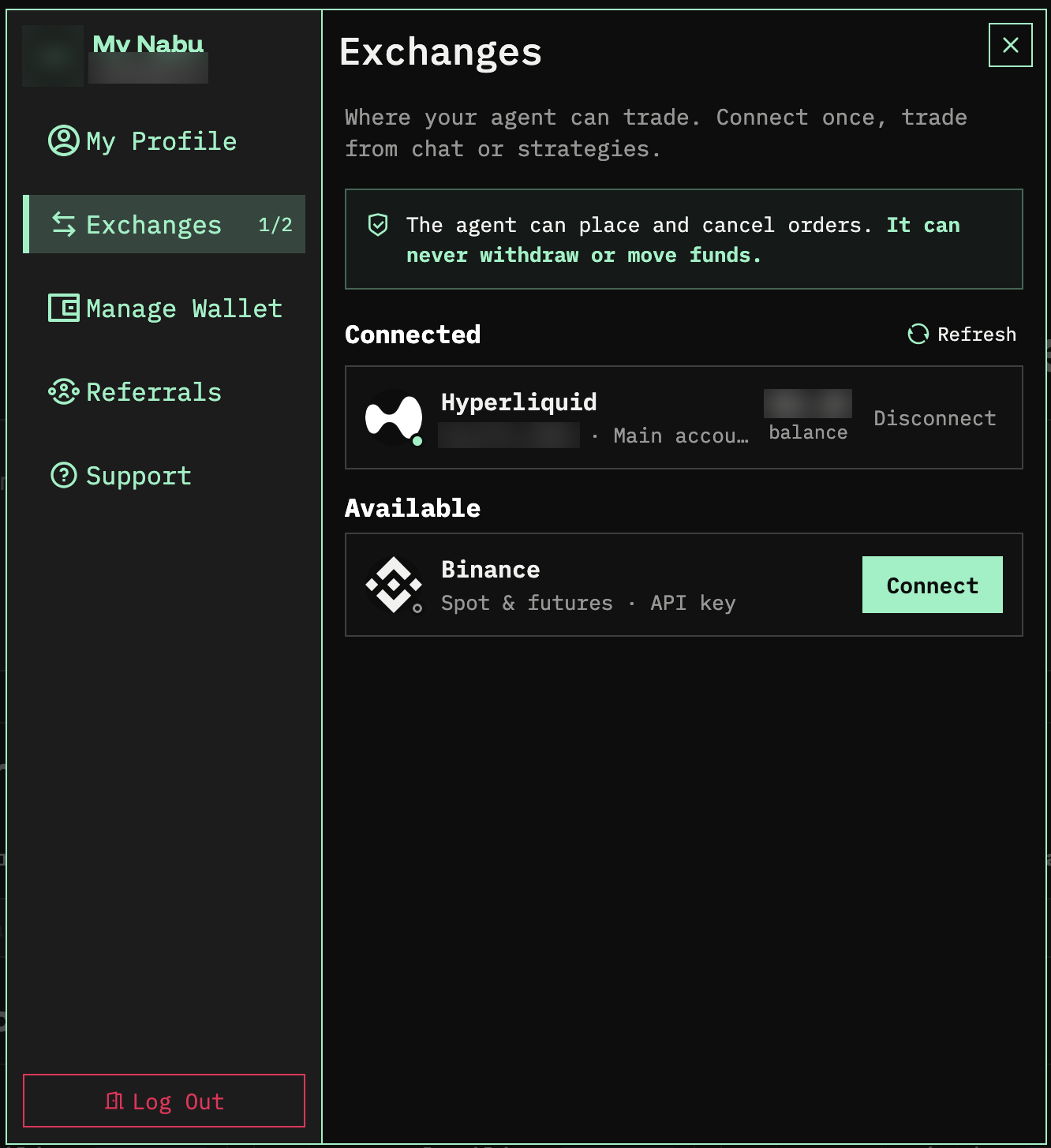
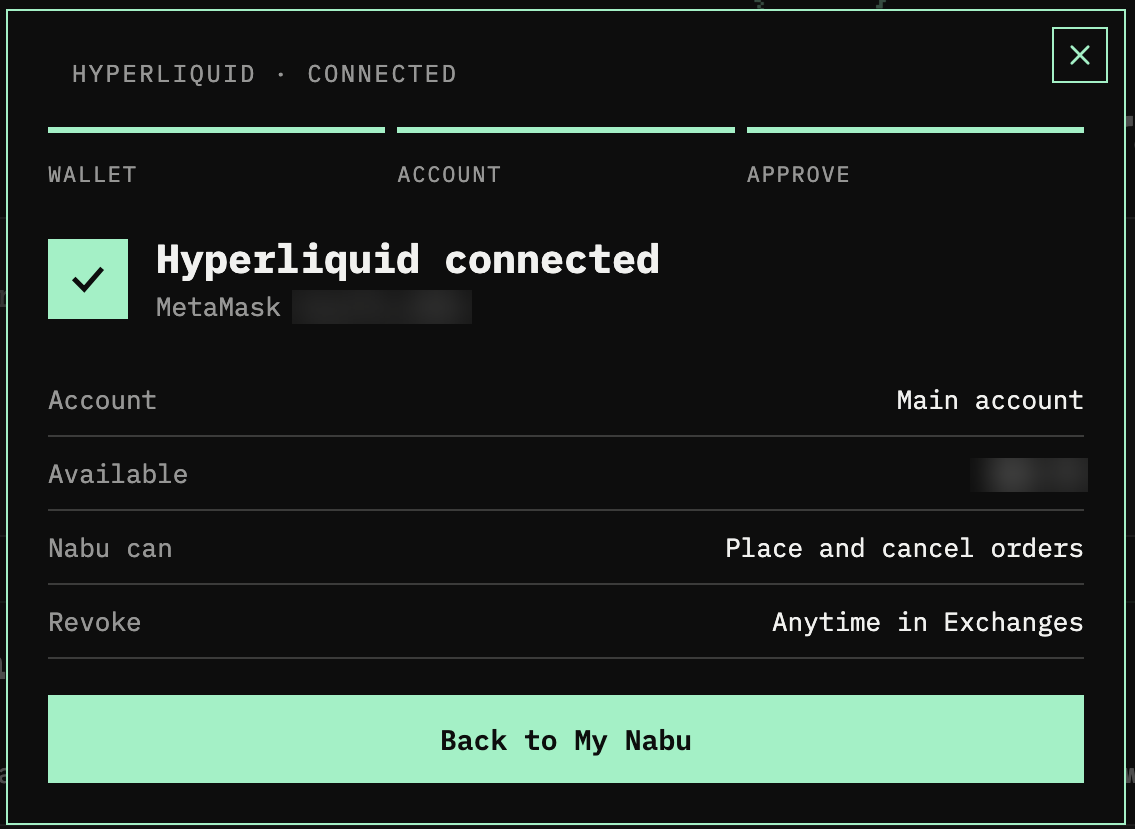
10. Nabu shows Hyperliquid connected with your account, the available balance, and what Nabu can do. Click Back to My Nabu.
11. Hyperliquid now appears under Connected on the Exchanges tab, with a green status indicator, your wallet address, the account, and its balance. To revoke Nabu's access at any time, click Disconnect.